
How to Add Chapters to a YouTube Video — and Read the Sectional Feedback They Generate

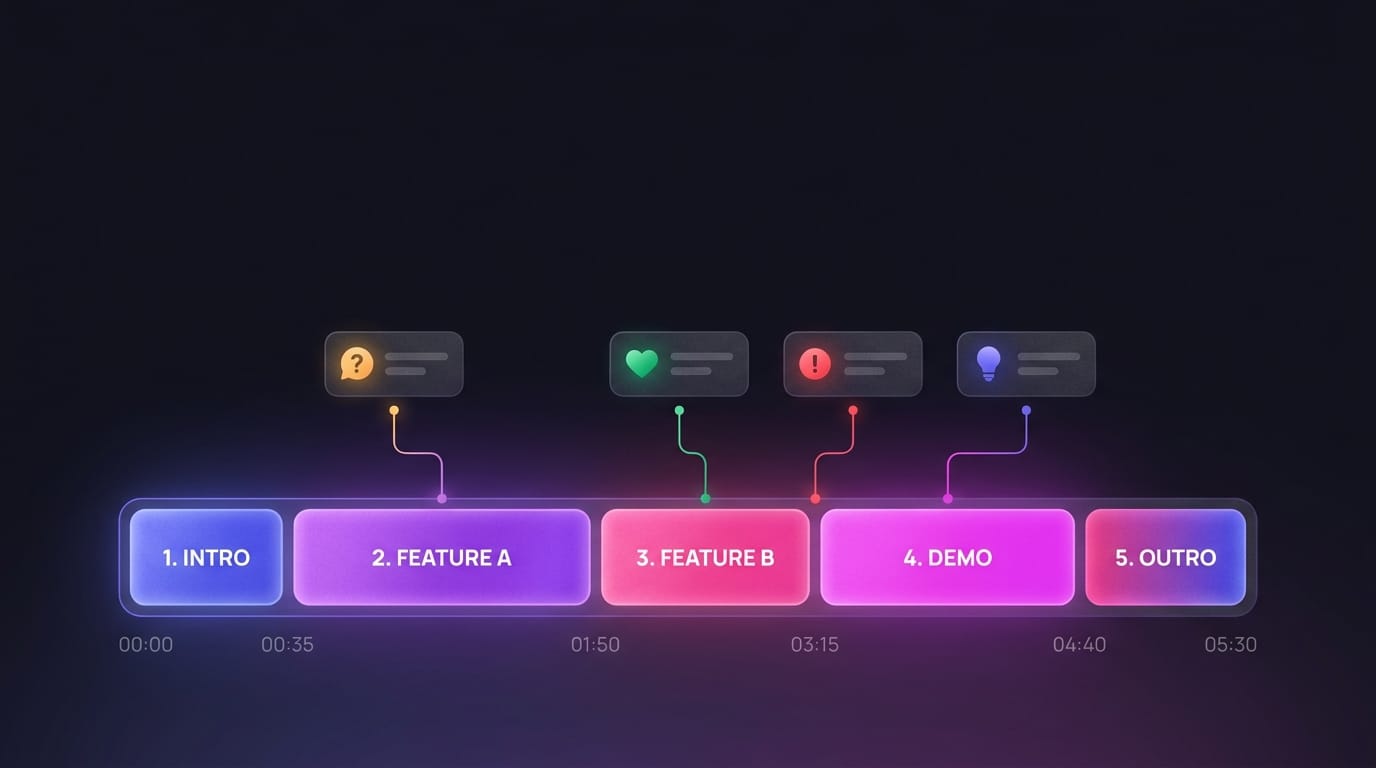
The mechanic for chaptering a YouTube upload takes about ninety seconds to learn. Paste a list of timestamps into the description, anchor the first at 00:00, keep every section at least ten seconds, list at least three in ascending order. Save. YouTube draws markers on the progress bar and the feature is live.
What most "how to add chapters" tutorials skip is the second-order effect — what those markers do to the comments underneath the video. Once viewers can navigate, their feedback stops being one undifferentiated stream and starts being sectional. You can finally answer "which part of the video are people reacting to" instead of guessing.
The rest of this guide covers the two ways to add chapters (description text and the Studio editor), the four mistakes that silently disable the whole feature, and — the part most creators miss — how chaptered videos turn a comment section into a chapter-by-chapter feedback instrument.
Why YouTube Chapters Compound on Watch Time, SEO, and Audience Signal
Chapters earn their keep in three different layers at once.
Layer one is the viewer experience. A long upload feels shorter when the progress bar visibly partitions it into named segments. Viewers who only wanted the pricing section watch the pricing section instead of bouncing at minute three. Both behaviors lift average view duration — one of the two metrics YouTube's recommendation system leans on hardest.
Layer two is search. Every chapter title is independently indexable, so a single twenty-minute video can rank for half a dozen specific queries its main title alone never could. A budgeting tutorial called "How I Manage My Money in 2026" can have a chapter "Setting Realistic Grocery Limits" — and that chapter can show up as its own search result. Google's "key moments" carousel sometimes promotes well-chaptered sections to the main results page, essentially free top-of-page real estate.
Layer three — the one nobody writes about — is feedback density. We see roughly two-thirds of comments on a well-chaptered tutorial reference a specific timestamp or chapter name within the first week. On the same video without chapters, that drops to under ten percent. The chapter list trains viewers to comment surgically, and surgical comments are the only kind useful as research input.
How to Add Chapters to a YouTube Video Manually in the Description
This is the original method and still the fastest one. You write the chapter list straight into the description field of the upload, save, and YouTube does the rest.
A working chapter block looks like this:
00:00 Cold open
01:30 What we're covering today
04:12 Step one: setting up the workspace
07:45 Step two: the part that usually breaks
12:20 Step three: shipping the result
16:00 Recap and next steps
Five rules cover almost every failure case:
- First timestamp must be exactly
00:00— not00:01, not0:00. Without it as the lead entry, YouTube silently ignores the whole list. - At least three entries. Two timestamps don't count as a chapter list and the feature stays off.
- Every chapter ten seconds or longer. A section running
01:15→01:22is seven seconds and breaks the entire list, not just that entry. - Strictly ascending order. A misplaced timestamp where a later moment appears above an earlier one disables every chapter that follows.
- One timestamp format.
MM:SSfor videos under an hour,HH:MM:SSfor anything longer — mixing formats confuses the parser.
Save the description, give YouTube a minute or two to reparse, refresh the watch page, and the markers should be on the progress bar. If they aren't, the cause is almost always one of the five rules above.
Using the YouTube Studio Chapter Editor for Frame-Accurate YouTube Chapter Timestamps
Typing timestamps into the description is fast but coarse. The numbers you type are the ones you eyeballed off the scrubber, so most chapter starts land a second or two off from where you wanted them. For polished long-form content — interviews, tutorials, anything where chapters need to land on a visual cut — the Studio chapter editor is the better tool.
Open YouTube Studio, pick the video, click into Details, scroll past the description block, and find the Chapters panel. Click Edit Chapters to load the timeline editor.
The interface gives you a scrubbable timeline with a marker per chapter. Drag the playhead to the exact frame you want, click Add Chapter, and type the title. Existing markers slide left or right with frame-level granularity — the difference between a chapter that opens on a hard cut versus one that opens half a second into the next clip.
When this matters: aligning a chapter with an on-screen text card, a music transition, a speaker change, or a B-roll cut. That alignment makes navigation feel intentional rather than approximate. Chapters built in the editor still surface in the description automatically, so you don't maintain two lists.
Four Common YouTube Chapter Formatting Mistakes That Silently Break the Feature
Almost every "my chapters aren't showing" question traces back to one of four issues, ranked by frequency on real channels:
Mistake one: the list doesn't begin at 00:00. The single most common cause. Start with a cold open at 00:18 — Hook and YouTube ignores the whole block. Fix: prepend 00:00 — Cold open and resave.
Mistake two: fewer than three entries. Two-chapter lists are treated as "not enough" and stay hidden. Subdivide one section so the count crosses the threshold.
Mistake three: a chapter shorter than ten seconds. Subtract consecutive timestamps to find the offender. 01:15, 01:21, 04:00 — the middle segment is six seconds, and the whole list breaks rather than just that entry. Move or remove the short one.
Mistake four: an out-of-order timestamp. Almost always a copy/paste mistake. Scan top-to-bottom and confirm each timestamp is later than the one above it; a single inversion kills everything that follows.
If chapters still won't render after all four are fixed, give YouTube five to ten minutes to reparse, then hard-refresh in a private window — your cached page can lag. Persistent failures usually mean a non-ASCII character (em-dash, smart quote, non-breaking space from a Google Doc paste) snuck in. Retype the line directly in YouTube rather than pasting.
How Chaptered Videos Turn Timestamped YouTube Comments Into Sectional Feedback
This is the part most chapter guides leave out, and it's where the compounding actually happens.
Once a video has chapters, viewer comments shift in character. Instead of generic "loved it" reactions, viewers write things like "the part at 12:30 lost me" or "the pricing chapter — can you redo that with the new tiers?" Each comment points at a specific section of a specific video. The feedback isn't just structured; it's spatially structured, anchored to the same chapter list you wrote.
Three patterns show up consistently on well-chaptered videos:
- Confusion concentrates in one or two chapters. Usually the section where you compressed too much or skipped a prerequisite. Three or four "wait, what?" comments under the same timestamp are an unambiguous signal — rerecord, add a follow-up card, or pin a clarification.
- Excitement concentrates in the chapter that's carrying the video. Viewers will literally write "more like the part at
08:15please" and hand you the topic for upload N+1. - Purchase intent concentrates in product-related chapters. "Where do I get this," "is there a discount code," "does this support X" — clustered under the demo or pricing chapter, almost never scattered.
We call these weak chapter zones (criticism cluster), strong chapter zones (praise cluster), and intent zones (questions/leads cluster). They're invisible without chapters and obvious with them — provided you can read the comment section sectionally instead of as a chronological wall.
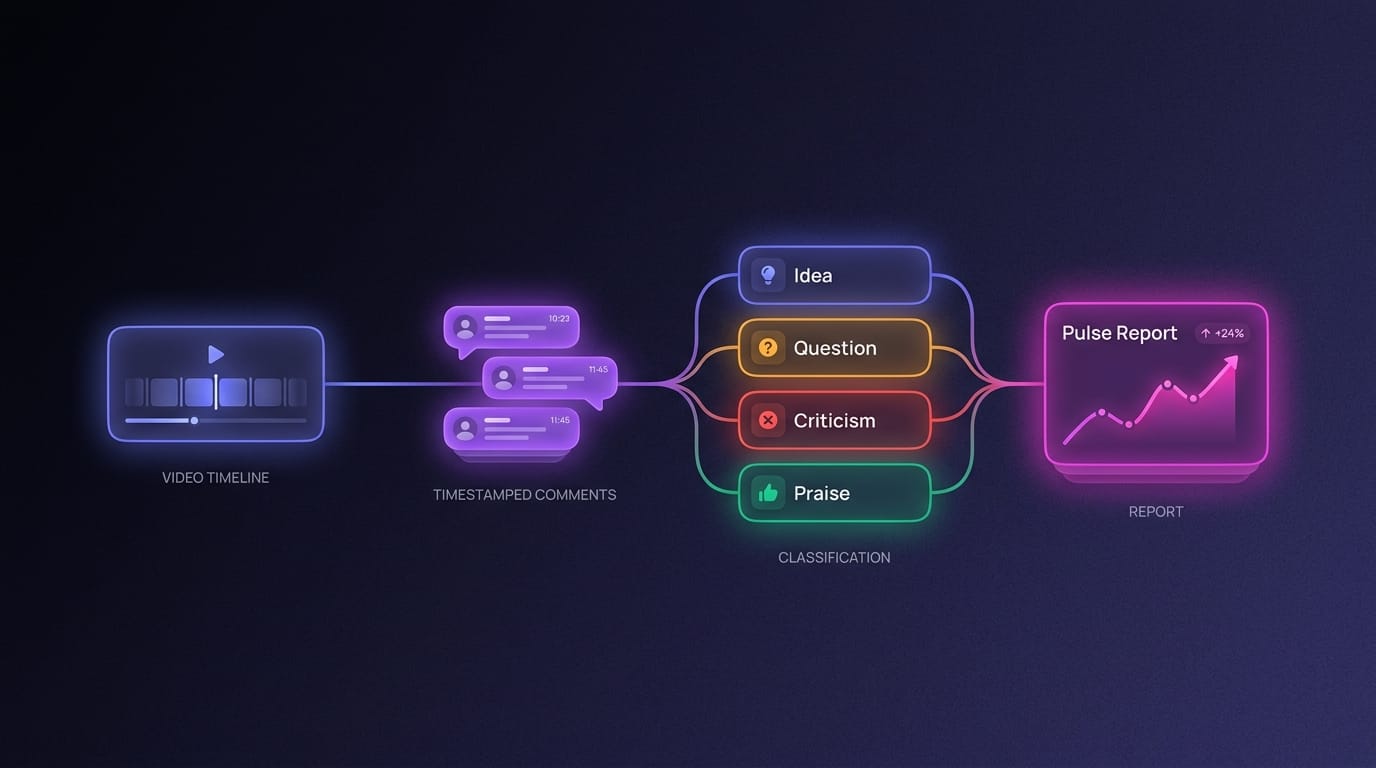
That's where OneTube fits. OneTube — built for YouTube comment intelligence — ingests every comment on a connected channel, classifies each one as CONTENT_IDEA, AUDIENCE_QUESTION, CRITICISM_ALERT, or PRAISE_INSIGHT, and tracks the weight (likes + replies + velocity) of each event over time. On chaptered videos the same pipeline produces sectional output: at a glance you see the pricing chapter generating eight new AUDIENCE_QUESTION events per week, or CRITICISM_ALERT volume spiking on the intro chapter after the last upload. Weekly Pulse rollups inherit the chapter context — not just what viewers want, but which chapter of which video triggered the request.
Advanced YouTube Chapter Strategies for Video SEO, Retention, and Channel Growth
Once the basics work reliably, three habits turn chapters from a nice-to-have into a real growth lever.
Write every chapter title like its own search snippet. A chapter called "Wrap-up" is a wasted indexing slot; the same chapter retitled "How to Measure ROI Without Touching GA4" is a search result waiting to happen. Specific, keyword-shaped titles regularly outrank the main video title for narrow queries because they target searches the parent title can't reach.
Cross-reference your chapter list against the audience-retention curve. Studio's retention graph shows where viewers drop off and where they re-engage. A dip during a specific chapter tells you the section failed, but not why. Pull the comments tied to that chapter — usually a handful of CRITICISM_ALERT or AUDIENCE_QUESTION events on a chaptered video — and you have the why on top of the what. That combination is almost always enough to fix the section in the next iteration.
Use a chapter template for recurring series. Repeat the same chapter skeleton across episodes (Hook → News → Deep dive → Q&A → Outro, or whatever maps to your format). Repeated structure trains the audience and makes retention curves directly comparable across episodes — a weak deep-dive in episode 7 stands out immediately against a strong one in episode 6 when the labels match.
Worth running an A/B cycle: try the same content with five long chapters versus twelve short ones, watch retention and comment volume per chapter, and pick whichever produces denser sectional feedback. Most channels settle between five and nine.
A Practical Pipeline: From Chapter Setup to Sectional Comment Intelligence
Putting the pieces together into something you run on every upload:
- Write the chapter list while editing, not after. Note the timestamp as you finish each section — more accurate than eyeballing them later from a finished cut.
- Description chapters for fast-turnaround uploads; Studio editor for evergreen long-form. The editor is worth five extra minutes when a chapter needs to land on a visual cut.
- Run the four-mistake check before saving.
00:00first, three or more chapters, each at least ten seconds, strictly ascending. - A week after publish, group the comments by chapter. If you don't have a tool, tag them by hand the first time — the weak/strong/intent zones surface immediately.
- Feed the sectional findings into the next upload. Confusion in chapter three becomes the topic of a follow-up video. Excitement in chapter five becomes the headline of upload N+1. Intent comments under the pricing chapter become the script for a dedicated walkthrough.
That loop is the payoff: chapters in, sectional comments out, next video informed by which sections carried the last one.
The takeaway
- Chapter the description with
00:00first, three minimum, ten seconds minimum each - The Studio editor delivers frame-accurate alignment when navigation needs to match cuts
- Chaptered videos generate timestamped comments that cluster into weak, strong, and intent zones
- Pair sectional comment clusters with the retention curve to find both the what and the why
See What Your Channel Is Actually Saying
OneTube is YouTube comment intelligence. It connects to any YouTube channel — yours, your competitor's, or any channel in your niche — and turns the entire comment section into a continuous stream of classified events: feature requests, criticism, audience questions, content ideas, with trend tracking over time.
Try it free. Drop any channel URL — yours or a competitor's — at onetube.io/audit, get a full Pulse report by email in ~15 minutes. No card, no account needed.
If it's useful, the 7-day trial unlocks ongoing monitoring, scheduled Pulse, multi-channel workspace, and trend alerts. From $19/mo.